
User Guide
How to use pois.world
GPS & Navigation
The GPS button (bottom-right) has 4 visual states:
Gray — Off
GPS inactive. Tap to start.
Green blinking — Searching
Waiting for GPS signal. May take a few seconds outdoors, longer indoors.
Green solid — Tracking
Your position is shown on the map (blue arrow), but the map doesn't follow. You can move the map freely. Tap to start following.
Blue — Following (Navigation)
Map follows your position and rotates by heading. Like car navigation. Arrow always points forward (up). Drag the map to break follow (goes to green). Tap to stop tracking completely.
Camera behavior
- First activation: the map zooms to your position at zoom 18 (2D) or ~200m altitude top-down (3D globe). Arrow appears at lower 1/3 of screen.
- While following: arrow always points up (forward), map rotates to match your heading. Works on both 2D and 3D maps. You can adjust zoom, camera height, tilt — these are preserved.
- Drag to break follow: map stops following (green dot), arrow rotates on map to show your heading. GPS tracking continues. Camera settings are remembered.
- Tap to re-follow: the map flies back to your position using your last camera settings (zoom, height, tilt) — it does not reset to defaults.
Map Controls
Points of Interest
Search
GPS Tracks
Logbook
A spatial journal — dated entries attached to any POI.
Photos & Videos
Contacts & Access Control
Manage who can see and contribute to your POIs.
Subscriptions & Notifications
Follow POIs like Telegram channels — get notified about new activity.
Live Location Sharing
My Action POIs
Layers Panel
Tap the Layers button (top-right) to control what's visible.
3D Globe (Cesium)
Mini-apps
A mini-app is a small service that writes into your POIs — a weather line in a note, a daily space picture, a Telegram channel mirrored into a logbook. Each one runs on its developer's own infrastructure; pois.world only holds the contract between you and it.
- Installing: open Mini-apps, pick one from the directory, or paste the manifest URL a developer gave you. You see exactly which permissions it asks for before anything is installed.
- Controlling: every installed app can be paused (⏸), configured (⚙) or removed. Per-POI you can switch an app off for that place alone, in the POI's Settings dialog.
- Seeing what it did: entries an app wrote are marked with its name, and each app's "How to use" explains its own behaviour in plain words.
Building one
A mini-app is two things: a manifest you publish (JSON at a URL of
your choosing, e.g. https://your.app/.well-known/pois-miniapp.json)
and an HTTPS endpoint we call. The manifest declares the app's id,
title, description, the permissions it needs and the events it wants; the user reads
that list at install time and decides.
- Permissions are narrow on purpose — e.g. writing logbook entries as the installer, or reading a POI. Ask for the least you need; the install screen shows every one of them.
- Events are delivered as signed webhooks (an
X-MiniApp-Signatureheader over the body) so you can verify the call really came from pois.world. - Nothing is hosted here. Your service stays yours: we call it, it calls our API with the token issued at install.
- Want the full contract (manifest fields, permission list, event payloads, signature recipe)? Ask us — the developer reference is shared on request while the platform settles.
Future Ideas
We're experimenting with photorealistic 3D city layers using the Cesium rendering engine. Explore real-world buildings, streets, and landmarks in full 3D — directly inside pois.world.
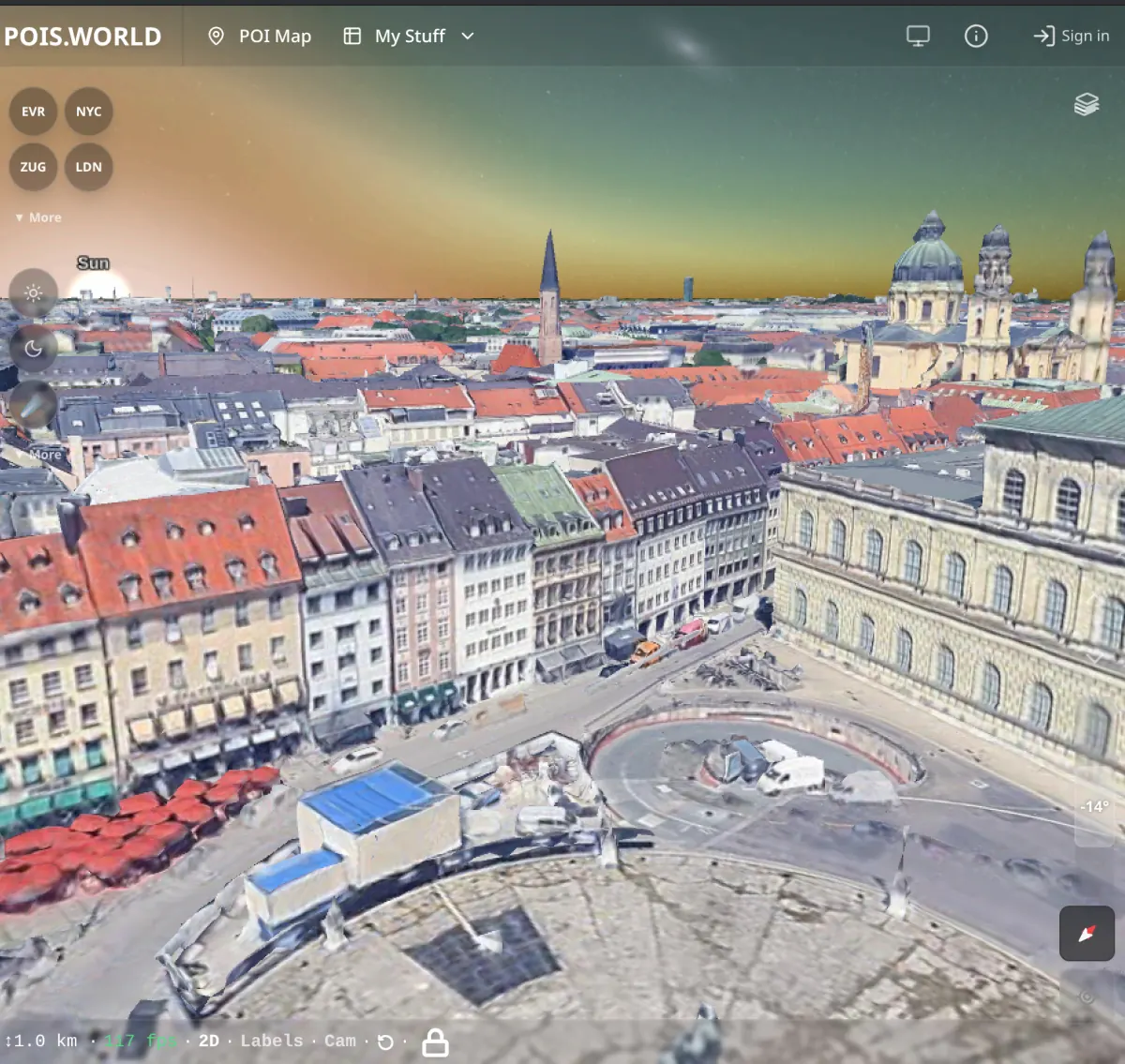
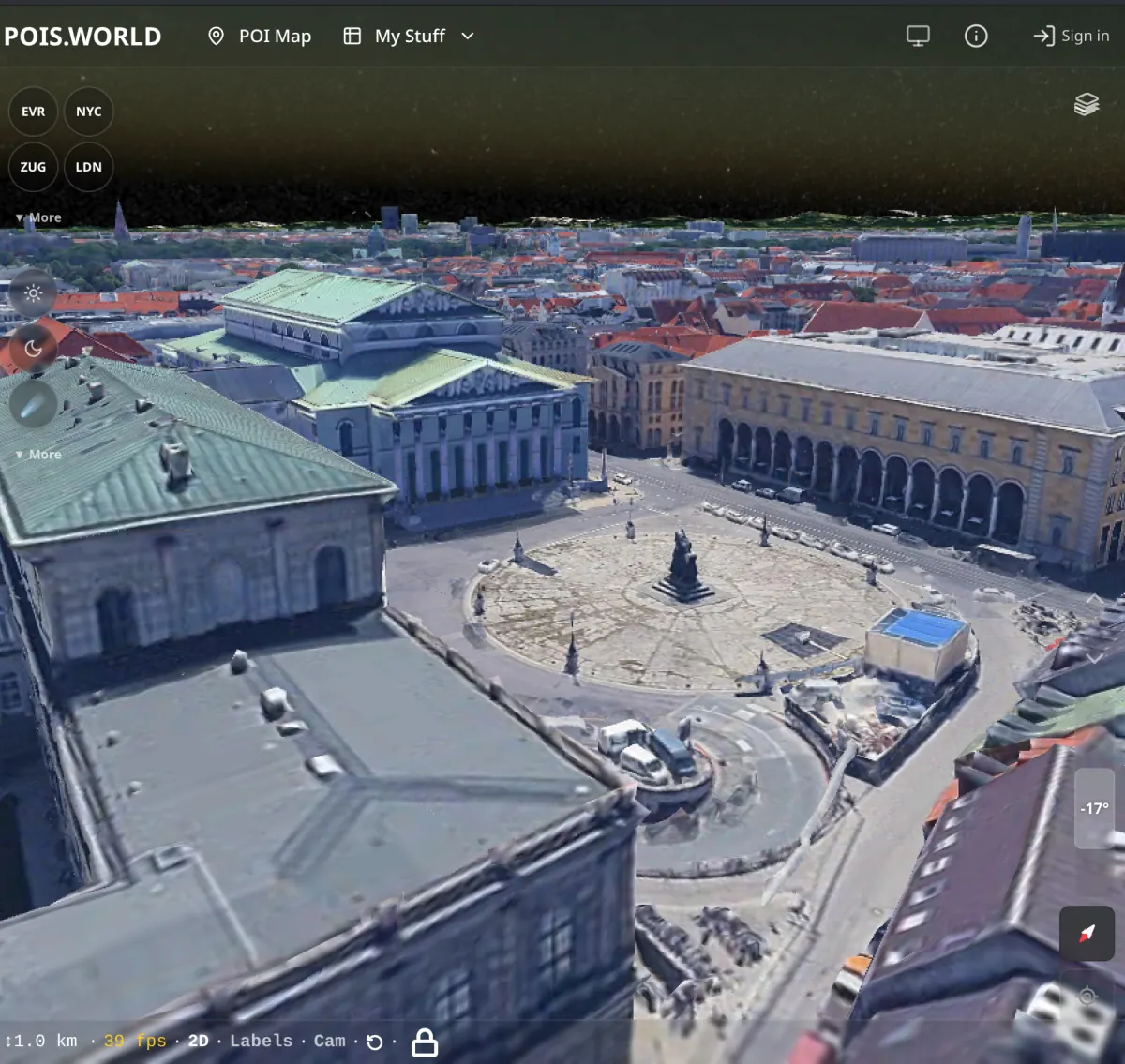
Coverage is expanding — major cities worldwide are available in photorealistic detail. Your POIs, tracks, and photos are visible on the 3D globe too. Try the 3D Globe →